alexander
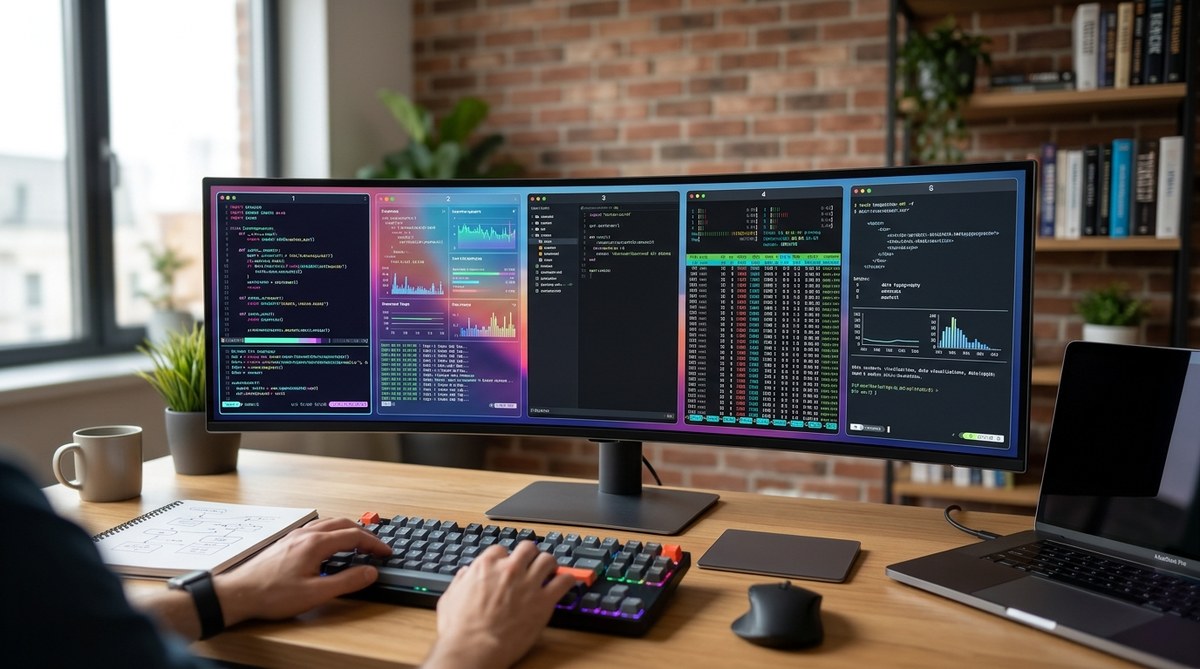
Your terminal is where you spend a huge chunk of your day. If you are still using the default macOS Terminal or the basic Linux terminal that came with your distro, you are missing out on serious productivity gains. Modern terminal emulators do more than just display text. They offer GPU acceleration, true color support, multiplexing, and scripting capabilities that can fundamentally change how you interact with your system. In 2026, the landscape has shifted. New players like Ghostty have arrived, and older stalwarts have matured into powerful tools. This guide will walk you through the five terminal emulators that can genuinely transform your coding experience.
The best terminal emulator for you depends on your workflow. Ghostty is the new default for its balance of features and speed. WezTerm offers unmatched configurability for power users. Alacritty is pure speed with no frills. Kitty is a feature-rich workhorse with built-in multiplexing. Warp brings a modern IDE-like experience to the command line. Pick the one that matches your daily needs.
What Makes a Terminal Emulator Great in 2026
Not all terminal emulators are created equal. A few key features separate the modern tools from the legacy ones.
- GPU acceleration. Rendering text on the GPU means your terminal can handle massive scrollback buffers and rapid output without stuttering. This is non-negotiable for anyone working with logs or large data sets.
- True color and font ligatures. If you are using a modern color scheme like Catppuccin or a Nerd Font, you need an emulator that supports true color (24-bit) and proper font rendering. Otherwise your carefully crafted prompt will look broken.
- Tmux or built-in multiplexing. You can either use tmux on top of a simple emulator, or pick an emulator with native pane management. Both approaches work, but native support often feels more integrated.
- Cross-platform consistency. If you switch between macOS, Windows, and Linux, you want your terminal config to work everywhere. Tools like WezTerm and Kitty handle this well.
- Low latency. Every keystroke should feel instant. High latency terminals are a pain when you are running a command-line debugger or editing in Vim.
We will look at each emulator through these lenses.
1. Ghostty: The New Default
Ghostty has taken the developer world by storm since its release. It is a GPU-accelerated terminal that focuses on being a great default out of the box. You do not need to spend hours tweaking config files to get a good experience.
- Performance. Ghostty is built on a custom GPU renderer. It is incredibly smooth even when running htop or tailing logs at high speed.
- Configuration. It uses a simple TOML or HJSON config file. You can set your font, color scheme, and keybindings in a few lines. No scripting language required.
- Cross-platform. It runs on macOS and Linux. Windows support is on the roadmap but not yet stable.
- Best for. Developers who want something that just works. If you are coming from iTerm2 or the default terminal, Ghostty is the most natural upgrade path.
One thing to note: Ghostty is still relatively new. Some niche features like sixel graphics support are not fully mature yet. But for day-to-day coding, it is hard to beat.
2. WezTerm: The Power User’s Dream
WezTerm is built by the same developer who created the popular multiplexer tmux. It is written in Rust and uses hardware acceleration. But its real strength is its insane configurability.
- Configuration. WezTerm uses a Lua-based config file. You can define complex keybindings, conditional styling, and even custom widgets. This is the emulator for people who love to tweak.
- Built-in multiplexing. WezTerm has native pane management that feels like tmux but is integrated into the emulator. You can split windows, create tabs, and organize your workspace without any external tool.
- Cross-platform. It runs on macOS, Windows, and Linux with identical behavior. Your config file works everywhere.
- Best for. Power users and DevOps engineers who want fine-grained control. If you have a complex workflow with multiple SSH sessions and log monitoring, WezTerm is a strong choice.
The learning curve is steeper than Ghostty. But if you invest the time to set up your Lua config, you will be rewarded with a terminal that matches your exact preferences.
3. Alacritty: Speed Above All
Alacritty is a minimalist, GPU-accelerated terminal that prioritizes speed and simplicity. It does not have tabs, panes, or a configuration GUI. You configure it with a YAML file, and that is it.
- Performance. Alacritty is one of the fastest terminals available. It uses OpenGL or DirectWrite for rendering and can handle massive amounts of output without breaking a sweat.
- Minimalism. No tabs, no panes. You are expected to use tmux or a window manager for those features. This keeps the codebase small and the rendering pipeline lean.
- Best for. Developers who already have a solid tmux setup and want the fastest possible rendering engine underneath it. Also great for people who use a tiling window manager like i3 or Hyprland.
If you are someone who likes to keep things simple and does not want your terminal to get in the way, Alacritty is a fantastic choice. Just be ready to set up tmux or rely on your window manager for splits.
4. Kitty: The Feature-Rich Workhorse
Kitty is another GPU-accelerated terminal that has been around for years. It is packed with features that make it a great all-in-one solution.
- Built-in multiplexing. Kitty has native pane management, similar to WezTerm but with a different design philosophy. You can split, resize, and navigate panes using keyboard shortcuts.
- Remote control. Kitty has a built-in remote control protocol. You can send commands to a running Kitty instance from a script. This is incredibly useful for automating your workflow.
- Graphics support. Kitty has excellent support for sixel and kitty protocol images. You can display images directly in the terminal, which is useful for data visualization or previewing assets.
- Best for. Developers who want a feature-rich terminal without leaving the terminal ecosystem. If you need image support or advanced scripting, Kitty is a top contender.
Kitty runs on macOS and Linux. Windows support is available through WSL but not native. The config file is a custom format that is easy to read and write.
5. Warp: The Modern IDE Terminal
Warp is a Rust-based terminal that feels more like an IDE than a traditional terminal emulator. It has a graphical interface with features like autocomplete, intelligent command suggestions, and a block-based output system.
- Smart features. Warp can suggest commands based on your history and the current directory. It also has a built-in AI assistant that can help you debug errors or write complex one-liners.
- Block-based output. Instead of a continuous scroll, Warp groups command output into blocks. You can scroll through them individually, which makes it easier to find the output of a specific command.
- Best for. Developers who are new to the command line or who want a more guided experience. Also great for teams that want to share terminal sessions or record demos.
Warp is free for individual use but has a paid tier for teams. It runs on macOS and Windows. Linux support is in beta. Some purists dislike the graphical interface, but for many developers, the productivity boost is real.
How to Choose Your Terminal Emulator
Here is a simple decision framework to help you pick.
| If you… | Choose this emulator |
|---|---|
| Want something that works out of the box | Ghostty |
| Love tweaking every setting with Lua | WezTerm |
| Already use tmux and want raw speed | Alacritty |
| Need image support and scripting | Kitty |
| Prefer an IDE-like interface with AI help | Warp |
A Practical Setup Process
Once you have chosen an emulator, follow these steps to get it configured for maximum productivity.
- Install your chosen emulator. Use your package manager (Homebrew on macOS, apt or pacman on Linux, or the official installer for Windows).
- Set your font. Install a Nerd Font like JetBrains Mono or FiraCode. Configure your emulator to use it. This ensures icons and ligatures render correctly.
- Pick a color scheme. Use a popular scheme like Catppuccin, Tokyo Night, or Dracula. Most emulators have a repository of community themes.
- Configure keybindings. Set up your preferred keybindings for splits, tabs, and copy/paste. If you are using WezTerm or Kitty, map them to your muscle memory.
- Integrate with your shell. Make sure your shell prompt (Starship, Powerlevel10k) looks correct. Adjust the emulator’s padding and cursor style to match your taste.
Expert advice: Spend no more than 30 minutes on initial configuration. Your terminal should adapt to you, not the other way around. You can always tweak later.
Common Mistakes and How to Avoid Them
Even experienced developers make these errors when setting up a new terminal emulator.
| Mistake | Why it hurts | How to fix it |
|---|---|---|
| Using the default font | Icons and powerline symbols break | Install a Nerd Font and set it in the config |
| Ignoring GPU acceleration | Laggy output with large logs | Enable GPU rendering in your emulator’s settings |
| Copying someone else’s config blindly | Keybindings conflict with your muscle memory | Start with a minimal config and add features slowly |
| Not testing cross-platform | Config breaks when you switch OS | Use a cross-platform emulator like WezTerm or Kitty |
| Overlooking scrollback buffer | Losing important output | Set a large scrollback limit (10,000 lines or more) |
Why Your Terminal Choice Matters for DevOps
If you are a DevOps engineer, your terminal is your cockpit. You are SSHing into servers, tailing logs, running Kubernetes commands, and monitoring dashboards. A slow or poorly configured terminal can cost you minutes every day. Over a year, that adds up to hours of lost productivity.
A GPU-accelerated terminal with native multiplexing means you can keep multiple SSH sessions open in panes, watch logs in real time, and run commands without context switching. Tools like WezTerm and Kitty shine here because they handle complex layouts gracefully.
If you are looking to further improve your workflow, check out our guide on top dev tools every programmer should master in 2026. It covers complementary tools that pair well with a modern terminal.
Making the Switch
Switching terminal emulators feels like a big deal, but it does not have to be. You can run multiple emulators side by side during the transition. Keep your old terminal open while you configure the new one. Once you have your keybindings and color scheme set, you will wonder why you waited so long.
The best terminal emulator for developers in 2026 is the one that fits your workflow. For most people, Ghostty is the safest bet. It offers the best balance of performance, ease of use, and modern features. If you are a power user, WezTerm or Kitty will give you the control you crave. If speed is your only metric, Alacritty is unbeatable. And if you want a fresh take on the terminal experience, Warp is worth a serious look.
Your terminal is your home base. Make it a place you enjoy spending time. Try one of these emulators today and see how it changes your daily coding rhythm.