alexander
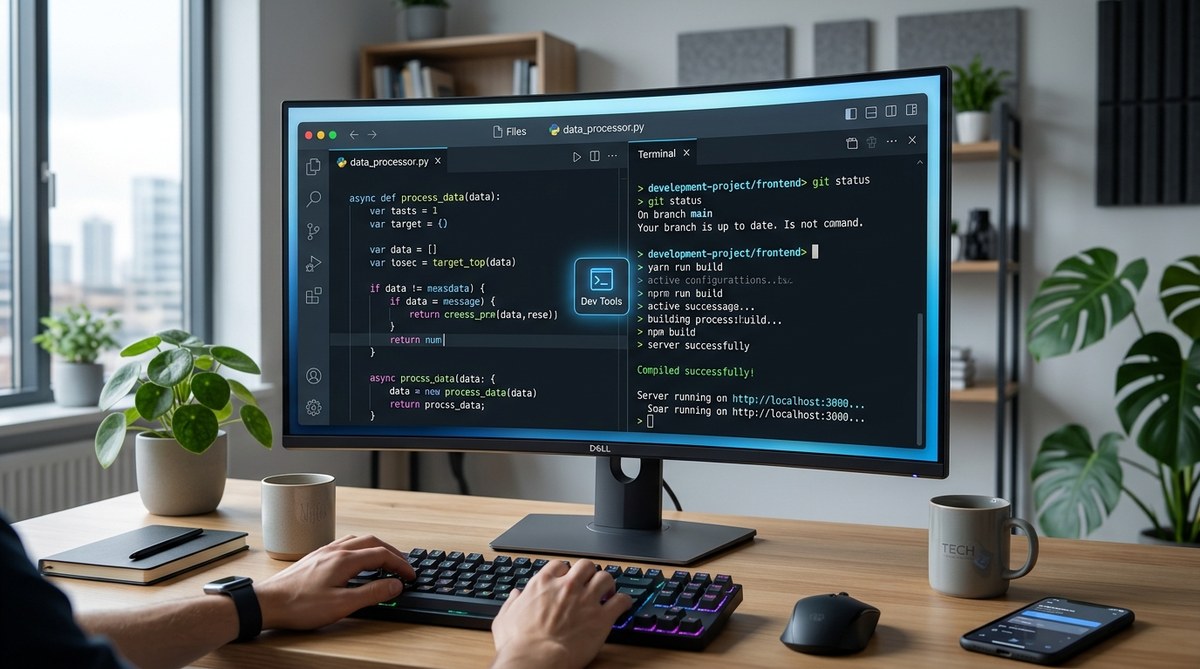
You are staring at a wall of red error messages in your terminal. You copy the traceback, switch windows to your editor, paste it into a search bar, then realize you need to run a test. So you switch back to the terminal, type the command, and watch it fail again. This dance between two windows has been the standard developer experience for years. But in 2026, it feels painfully outdated. The modern coding workflow demands that your command line and your code live in the same place. A code editor built-in terminal is no longer a luxury feature; it is the glue that holds a productive development session together.
An integrated terminal removes the mental cost of switching contexts. It lets you run tests, manage Git, and execute scripts without leaving your editor. This keeps your focus on the code. In 2026, the best tools make this seamless, turning your editor into a command center rather than just a text box.
The Real Cost of Context Switching
Every time you leave your editor to run a command, your brain needs a moment to adjust. You look at a different window, maybe a different color scheme, and you have to remember where you left off. Researchers call this “attention residue.” It takes about 20 minutes to fully refocus after a distraction. You might not feel it on a small task, but across a full day of coding, those seconds add up to lost hours.
A built-in terminal solves this by keeping everything in one visual space. You see the error, the code that caused it, and the fix you are typing all at once. This matters even more in 2026 because our workflows have gotten heavier. We are not just running node index.js anymore. We are managing Docker containers, running database migrations, and triggering CI pipelines locally. The terminal is no longer a side tool; it is the control panel for your entire local environment.
What Makes a Terminal “Integrated” Anyway?
It is easy to assume that any terminal window works fine. But the integration level matters. A truly integrated terminal does more than just sit in a panel. It understands your workspace.
- It opens in the root directory of your current project.
- It respects your shell configuration (like zsh or fish).
- It captures output that you can click on to jump to files.
- It allows you to run tasks directly from your editor’s UI.
- It supports multiple shells side by side, like running a server and a test suite simultaneously.
Without these features, you are just using a regular terminal that happens to be inside a window. The value comes from the connection between the editor and the shell. For example, when a test fails, the terminal output often includes a file path. In a good integration, that path is clickable. You click it, and the editor jumps to the exact line. That is the workflow that saves you from the copy-paste loop.
The Heavy Hitters in 2026
If you are on a Mac or working cross-platform, you likely have a favorite editor. Let us look at how the main players handle this feature.
Visual Studio Code and Its Extensions
VS Code set the standard for terminal integration. It has a solid built-in terminal that opens with a simple keyboard shortcut (Control plus the backtick key on Windows, Command plus the backtick on Mac). The real power comes from the extension ecosystem. You can run tasks, split terminals, and even link terminal output to your code. It is the default choice for many because it just works.
JetBrains IDEs
If you use IntelliJ, PyCharm, or WebStorm, you get a terminal that feels more like a professional tool. It integrates with the IDE’s run configurations. You can see the output of your application right next to the code. The terminal also supports “smart” command line completion based on your project structure. It is a heavier tool, but for large projects, the integration is deeper.
Neovim and the Terminal Buffer
For the minimalists, Neovim offers a terminal buffer inside the editor. It is not a separate panel; it is just another window. This means you can use all your Vim keybindings to navigate terminal output. You can yank text from the terminal and paste it into your code without touching the mouse. It is a powerful workflow, but it has a learning curve.
Zed and the Modern Approach
Zed has been gaining traction for its speed. It treats the terminal as a first-class citizen with a focus on performance. The terminal feels instant, and it integrates with the AI assistant features. It is worth testing if you want a modern, fast editor.
Setting Up Your Ideal Terminal Workflow
Getting the most out of your integrated terminal takes a little configuration. Here is a simple process to get started.
- Choose your shell. If you are on a Mac, switch from the default bash to zsh (it is already installed). If you want more features, try fish. On Windows, install Windows Terminal and set your default shell to PowerShell or WSL.
- Configure your editor. Open your editor’s settings and find the terminal section. Set the default shell path. Make sure the terminal opens in the project root. In VS Code, this is usually automatic. In other editors, you may need to set a custom command.
- Learn the split shortcuts. You will want to run a server in one terminal and a test watcher in another. Learn the shortcut to split the terminal panel. In VS Code, it is Command + Backslash.
- Set up tasks. Instead of typing
npm run devevery time, create a task. You can bind it to a keyboard shortcut. This turns a multi-step process into a single key press. - Customize the prompt. Make your prompt show the Git branch and the current folder. This gives you context without typing
pwdorgit statusconstantly.
The Hidden Danger of a Bad Setup
Not all terminal integrations are created equal. A poorly configured one can be worse than using a separate window. Here is a table to help you spot the difference.
| Feature | Good Integration | Bad Integration |
|---|---|---|
| Startup Directory | Opens in the project root automatically. | Opens in the home directory or a random folder. |
| Output Linking | File paths in output are clickable. | You must manually search for the file. |
| Shell Support | Works with zsh, fish, and custom configs. | Resets your shell to the default, ignoring your setup. |
| Performance | Instant typing, no lag. | Delayed input, especially with large outputs. |
| Task Integration | Can run build tools and see errors inline. | You must run everything manually. |
If your editor’s terminal feels sluggish or resets your aliases, fix that first. A terminal that does not respect your .zshrc file will break your workflow. You will end up typing commands that fail because your aliases are missing.
When You Should Still Use a Separate Terminal
There is a time and a place for a standalone terminal app. If you are working on a remote server via SSH, you probably want a dedicated app like iTerm2 or the Windows Terminal. The integrated terminal can handle SSH, but a separate window gives you more screen space and better session management.
Also, if you are running a long process that you need to monitor while working in a different project, a separate terminal is useful. You can keep it on a second monitor and watch the logs. However, for 95% of your daily tasks, the built-in terminal is enough. It keeps your focus sharp and your hands on the keyboard.
Expert advice: Do not try to force every workflow into the integrated terminal. If you are managing complex server infrastructure, use a dedicated tool. But for day-to-day coding, the integrated terminal is the single best productivity upgrade you can make. It removes the friction between thinking and doing.
The Missing Piece: Keyboard Shortcuts
The integrated terminal only saves time if you can open it without touching your mouse. Memorize these shortcuts. They are the difference between a smooth workflow and a frustrating one.
- VS Code: Control + ` (backtick) to toggle the terminal.
- JetBrains: Alt + F12 to open the terminal tool window.
- Zed: Command + J to toggle the bottom dock.
- Neovim:
:termto open a terminal buffer.
Once you have the terminal open, learn how to switch focus between the editor and the terminal. In VS Code, you can use Control + ` to hide it, or you can use the “View: Focus Terminal” command. The goal is to never take your hands off the keyboard.
A Practical Example: The Bug Hunt
Imagine you are debugging a web app. You change a line of code, and you want to see if it fixes the issue. Without an integrated terminal, you would:
- Save the file.
- Alt-Tab to your terminal.
- See the dev server has already reloaded.
- Look at the browser.
- See the error is still there.
- Alt-Tab back to the editor.
With an integrated terminal, you do this:
- Save the file.
- Look at the terminal panel in the corner of your editor.
- See the error output.
- Click the file path in the output.
- The editor jumps to the line.
That is a huge difference. You eliminate the window switching entirely. This is why the code editor built-in terminal is so powerful. It is not about the terminal itself; it is about the connection to your code.
The Future of the Integrated Terminal
In 2026, the terminal is becoming more than just a place to type commands. AI is changing how we interact with it. You can now ask your editor to explain an error message that appears in the terminal. You can select a block of output and ask the AI to suggest a fix. The terminal is becoming a conversational interface.
This means the integration matters even more. An AI assistant that can see your terminal output and your code at the same time can provide much better suggestions. It has the full context. This is a strong reason to move your terminal inside your editor if you have not already. If you are curious about which AI tools are worth the hype, check out the AI coding assistants that are actually worth it for developers in 2026.
Common Mistakes to Avoid
Setting up a terminal is easy, but setting it up well takes a little care. Here are the most common mistakes I see.
- Using the default shell without customization. You are missing out on aliases and plugins that save time.
- Not splitting the terminal. You run your server and your tests in the same tab, making it hard to read output.
- Ignoring the task runner. You type the same long command ten times a day instead of creating a task.
- Forgetting to update your editor. Terminal integration improves with every release. Keep your tools current.
Avoiding these mistakes will make your workflow feel much smoother. You will wonder how you ever worked without a proper setup.
Making the Switch Today
You do not need to change your entire editor to benefit from this. Even if you use a simple editor, you can likely install a plugin that adds a terminal panel. The goal is to reduce the distance between your code and your commands.
Start small. Open your editor’s terminal and just use it for one day. Do not force it. Just use it for Git commands and running your tests. See how it feels. You might miss your old setup at first, but give it a week. The convenience of having everything in one place becomes addictive.
If you are still comparing editors, consider the terminal integration as a deciding factor. It is a feature that you will use every single day. A good one is worth more than a fancy theme or a few extra keyboard shortcuts. For more ideas on building out your toolkit, look at the essential dev tools for streamlining your development workflow in 2026.
Your Editor as a Command Center
The days of juggling multiple windows are fading. The modern developer wants a single, focused workspace. Your code editor built-in terminal is the key to that focus. It turns your editor from a passive text viewer into an active command center.
Take the time to set it up properly. Learn the shortcuts. Create tasks for your repetitive commands. Split your terminal when you need to monitor multiple processes. This is not about being fancy. It is about removing friction so you can spend your energy on solving problems, not on managing windows.
Give it a real try this week. You will likely find that you are finishing tasks faster and feeling less frazzled at the end of the day. That is the real win.