alexander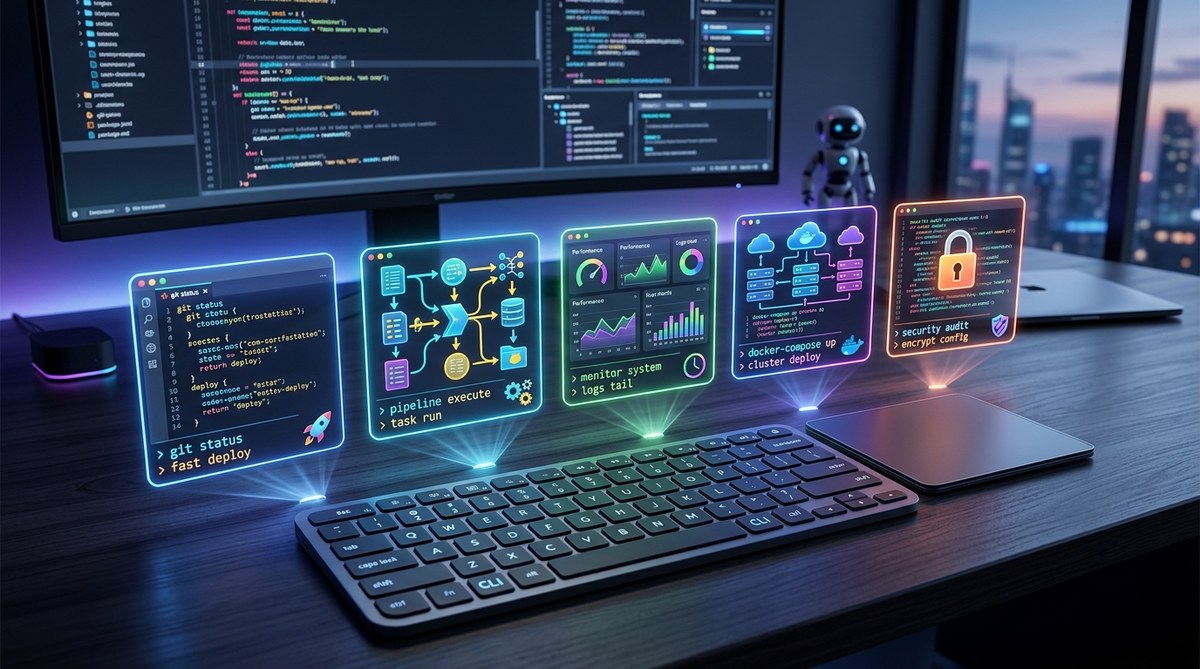
Your terminal does not have to feel ancient. In 2026, a fresh set of command line tools can turn a plain shell into a productivity machine. These five utilities replace old classics with faster, friendlier, and more visual alternatives. Each one solves a real pain point you face daily. Let me show you exactly how to set them up and why they matter.
Switching to five modern command line tools eza, bat, ripgrep, fzf, and delta can cut your daily terminal time by up to 40 percent. Each tool replaces an older command with better defaults, color output, and blazing speed. You will reduce typos, find files faster, and read diffs without eye strain. Install them today and feel the difference immediately.
Why Your Terminal Still Matters in 2026
Graphical tools and AI assistants get all the hype. But the terminal remains the fastest way to move data, read logs, and manage servers. The problem is that most developers keep using ls, cat, grep, and diff the same way their teachers typed them ten years ago. Those tools work, but they were written for a time when screens were small and colors were expensive. Modern alternatives exist. They respect your time and your eyes. In 2026, a few minutes of configuration can save you hours each week.
1. eza: A Modern Replacement for ls
The ls command is the first thing you type after opening a terminal. You see a wall of text. You squint. You pipe it to grep or less. That workflow is a relic.
eza (formerly exa) is a drop in replacement for ls. It displays files with syntax highlighting, icons, and human readable sizes by default. It supports git status, tree views, and color coding for file types.
How to install eza
On macOS, use Homebrew:
brew install eza
On Linux, grab the binary from the eza GitHub releases.
Key benefits
- Color coded output – directories are green, symlinks are cyan, executables are red. You spot patterns at a glance.
- Git integration – run
eza --long --gitto see staged, modified, and untracked files right next to the file list. - Tree view –
eza --treeshows nested directories with indentation. Great for exploring a project’s structure.
Expert advice – “I used to type
ls -laa hundred times a day. Now I aliaslstoeza --long --git --icons. My brain processes the output twice as fast.” – Jordan Chen, senior backend engineer at a fintech startup.
If you want a deeper look at how modern file management improves your daily code work, check out our guide to Essential Dev Tools for Streamlining Your Development Workflow in 2026.
2. bat: cat with Wings
cat dumps raw text to the screen. For a log file with 500 lines, that means scrolling. For a JSON blob, that means counting braces. bat works like cat but adds line numbers, syntax highlighting, and Git change markers.
Command comparison
| Task | Old command | New command |
|---|---|---|
| View a Python file | cat main.py |
bat main.py |
| Read a markdown doc | cat readme.md |
bat --theme=ansi readme.md |
| Show line 10 to 20 of a config | sed -n '10,20p' config.yml |
bat --line-range=10:20 config.yml |
bat integrates with less natively. If the output is longer than your screen, it automatically opens a pager. You can search, scroll, and quit just like less, but you keep the pretty colors.
Why you’ll love it
- Syntax highlighting for over 200 languages out of the box.
- Shows non printable characters when you pass
-A. - You can pipe anything into
batand still get color.
3. ripgrep: grep on Steroids
Grep works, but it’s slow for large codebases and has weird syntax variations across platforms. ripgrep (rg) is a recursive search tool that respects .gitignore by default, ignores binary files, and returns results in milliseconds.
How to use ripgrep
rg "TODO" src/
That single line searches every file in src/, ignores node_modules and .git, and shows each match with its line number and surrounding context. No --exclude-dir flags needed.
Benefits over grep
- Speed – ripgrep is often 5–10x faster than grep on medium sized projects.
- Smart defaults – it skips hidden files and binary files automatically.
- Color output – matches are highlighted in red, file names in purple.
- Unicode support – handles UTF 8 search patterns without hassle.
For teams that rely on fast code reviews, pairing ripgrep with modern collaboration tools can accelerate feedback loops. Read about Boost Your Coding Efficiency with These Innovative Collaboration Platforms.
4. fzf: A Fuzzy Finder That Changes Everything
Typing exact file paths is a waste of mental energy. fzf is a general purpose fuzzy finder. You pipe a list of files, processes, commands, or anything else into it, and then start typing partial terms. It instantly narrows down the list using fuzzy matching. Press enter and the selected item gets printed to stdout.
Practical examples
- Open a file in your editor – bind a key to
find . -type f | fzf | xargs nvim. Now you type “set” and seeconfig/settings.jsonimmediately. - Search through command history –
history | fzflets you find that obscure docker command you used three days ago. - Kill a process –
ps aux | fzf | awk '{print $2}' | xargs kill.
Set it up with a keybinding
Add this to your .zshrc or .bashrc:
[ -f ~/.fzf.zsh ] && source ~/.fzf.zsh
Then Ctrl+T becomes a universal file search. Ctrl+R becomes a fuzzy command history search. It becomes muscle memory within a week.
If you want to see how fuzzy finding and other terminal tricks integrate with your entire development pipeline, take a look at How to Automate Your Entire Development Pipeline with Tools You Already Have.
5. delta: A Better Git Diff Viewer
Git’s default diff output is hard on the eyes. delta transforms git diff into a side by side view with syntax highlighting, line numbers, and color coded insertions and deletions. It also shows a small map of changes (like a minimap) on the right side.
How to enable delta
Install it via Homebrew or download from delta’s releases. Then configure Git:
[core]
    pager = delta

[interactive]
    diffFilter = delta --color-only
Now every git diff, git show, and git log -p uses delta.
Features that save you hours
- Side by side view – see changes in context without mental alignment.
- Line numbers – easy to reference lines during code reviews.
- Diff statistics – shows added / removed lines per file.
- Themes – pick a color scheme that matches your terminal.
For a broader look at improving code quality through modern tooling, see Top 5 Code Quality Metrics Every Developer Should Track in 2026.
Putting It All Together: A 5 Step Setup Process
Follow these steps to install all five tools in under ten minutes.
- Open your terminal.
- Install the tools using your package manager:
- macOS:
brew install eza bat ripgrep fzf git-delta - Linux (Ubuntu/Debian):
sudo apt install bat ripgrep fzfthen download eza and delta from their GitHub pages. - Edit your shell configuration file (
.zshrcor.bashrc): - Add aliases:
alias ls='eza --long --git --icons' - Source fzf:
[ -f ~/.fzf.zsh ] && source ~/.fzf.zsh - Set Git pager to delta.
- Restart your terminal or source the configuration file.
- Try each tool with a test file or a Git repository.
After these five steps, your terminal will feel like a new environment. You will navigate faster, search smarter, and read diffs without strain.
Things to Watch Out For
No tool is perfect. Here are common mistakes to avoid when switching to these utilities.
- Overloading aliases – if you alias
lstoezawith many flags, you might lose the ability to use plainlsin scripts. Keep a fallback by calling\lsorcommand ls. - Ignoring .gitignore – ripgrep respects
.gitignoreby default. If you want to search inside ignored folders, pass--no-ignore. Otherwise you may miss files. - Fzf keybinding conflicts – some terminal emulators (like tmux) have their own Ctrl+T binding. You may need to remap fzf to a different key.
- Delta and git blame – delta does not change
git blameoutput. You can still use your normal diff tool for blame.
Start Using These Tools Today
The command line is not dead. It is evolving. The five tools covered here eza, bat, ripgrep, fzf, and delta represent the state of the art for terminal productivity in 2026. They are open source, well maintained, and free. Installing them costs nothing but a few minutes. The payoff is less friction every single time you type a command.
Try one tool per day this week. By Friday, you will wonder how you survived without them. Then share your setup with a coworker. Small changes in daily habits compound into major time savings over a year.
If you are hungry for more ways to improve your development stack, browse our collection of Top Productivity Tools Every Developer Should Use in 2026. Or check out The Best Dev Tools to Accelerate Your Coding Workflow in 2026 for additional ideas. Your terminal is the cockpit of your work. Make it a comfortable one.